When to Skip Photoshop for Old Photo Restoration
Old photo restoration means repairing damage that built up over time: fading, scratches, blur, stains, torn edges, and weak color. The big question is not whether restoration is possible. It is whether you need a manual Photoshop workflow or a faster no-Photoshop option.
If you only need to rescue family snapshots, archive prints, or a handful of scanned photos, AI usually handles the job well without layer masks, clone stamps, or retouching experience. Save Photoshop for edge cases such as large missing areas, museum-grade archival work, or projects where every pixel needs manual review.
What Damage You Can Fix Without Photoshop
Before you choose a workflow, identify the damage. Most consumer photos can be restored without Photoshop when the issues are common and repeatable:
- Scratches and tears — Surface marks or physical damage from handling, framing, or aging
- Faded colors — Color loss from prolonged exposure to light, especially common with older prints
- Blur — Soft focus from camera shake, poor lens focus, or motion blur
- Sepia tones — The warm brownish cast that develops on old photographs over time
- Water damage — Stains, mold, or paper warping from flooding, humidity, or spills
- Black and white photos — Monochrome images where adding color can bring new life to old memories
- Torn edges — Physical damage to photo corners or borders
Most modern AI restoration tools, including PixRestorer, handle several of these problems in a single pass. That makes the no-Photoshop route practical for people restoring a few personal photos instead of running a full retouching project.
The No-Photoshop Workflow with PixRestorer
PixRestorer is an online AI photo restoration tool built for the no-Photoshop path. You upload your photo, the AI analyzes the damage, and you get a restored version back without installing software or learning a manual editor.
The workflow is simple: scan or photograph the print, upload it to the restore tool, review the result, then decide whether the free credits are enough or whether you want a paid pack from the pricing page for more photos.
Here's what it can fix in one go:
- Scratches and tears — Fills in missing areas using surrounding image context
- Faded colors — Brightens and saturates washed-out photos
- Blur — Sharpens details and improves overall clarity
- Black & white to color — Colorizes monochrome photos automatically
- Water stains and damage — Removes stains and restores water-warped areas
- Face enhancement — Brings out facial details in portrait photos
Step-by-Step Without-Photoshop Tutorial
Step 1: Upload Your Photo
Go to PixRestorer's restore tool and upload your old photo. You can drag and drop or click to select a file. PixRestorer accepts JPG, PNG, and WEBP formats.
Tip: Always upload the highest resolution version you have — even if the photo looks blurry, a high-resolution scan gives the AI more data to work with and produces better results.
Step 2: AI Analyzes and Restores
Once your photo uploads, PixRestorer's AI automatically detects all types of damage — scratches, fading, blur, and more. The restoration runs on our servers, so it doesn't drain your device's battery.
Most photos finish processing in under 30 seconds. Larger or more heavily damaged photos may take a bit longer.
Step 3: Preview and Download
You'll see a before-and-after comparison when the restoration is done. If the result looks good, download it in full resolution. New users get 2 free credits to try it out — one credit equals one photo restored.
If you have a larger family archive to work through, compare the available credit packs on the pay-as-you-go restoration page before you commit to a bigger batch, or review our photo restoration cost guide if you want a clearer breakdown of per-photo pricing and comparison context.
Real restoration example from our community
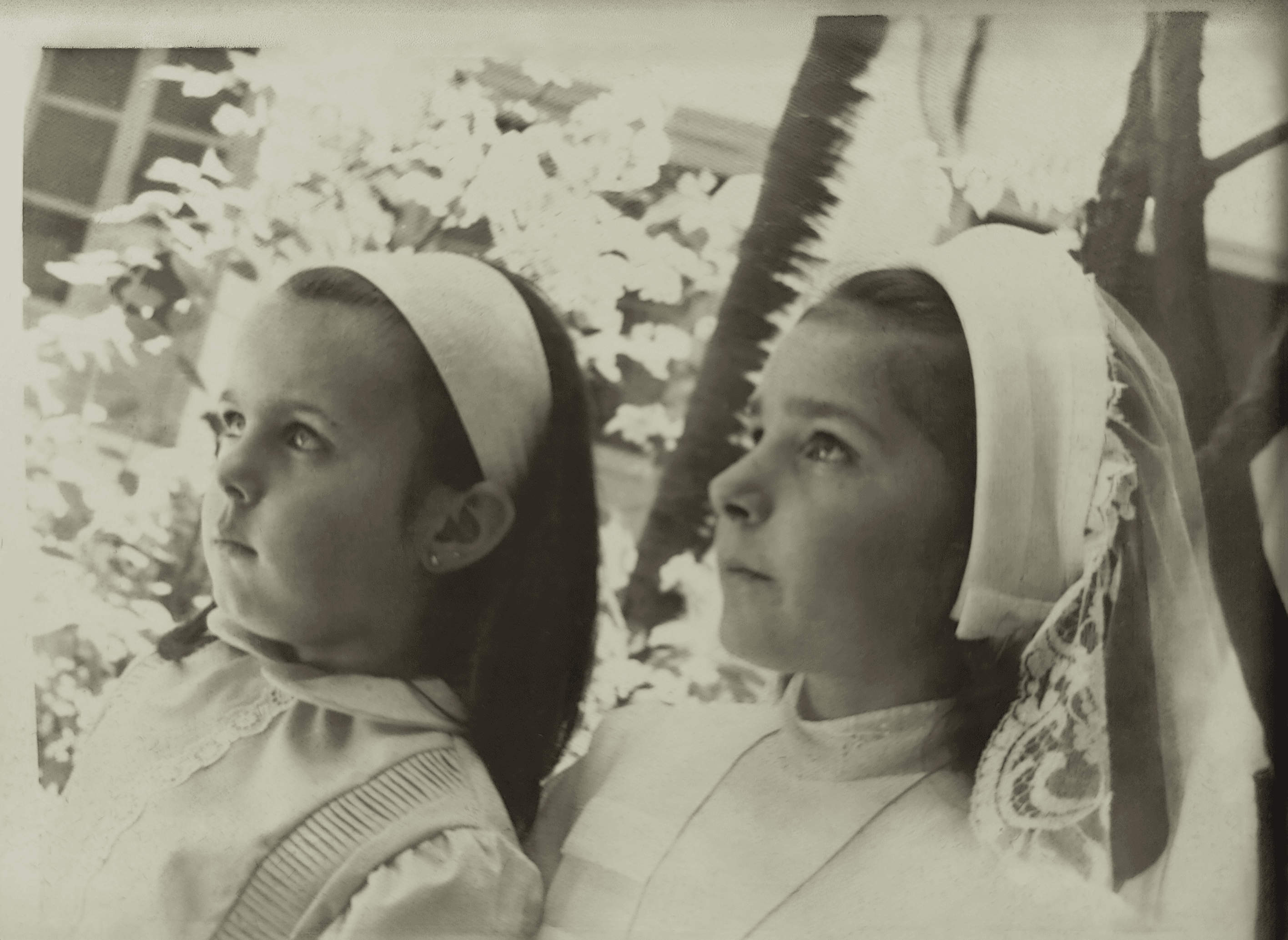
Before: Faded colors, scratches, and wear from decades of storage
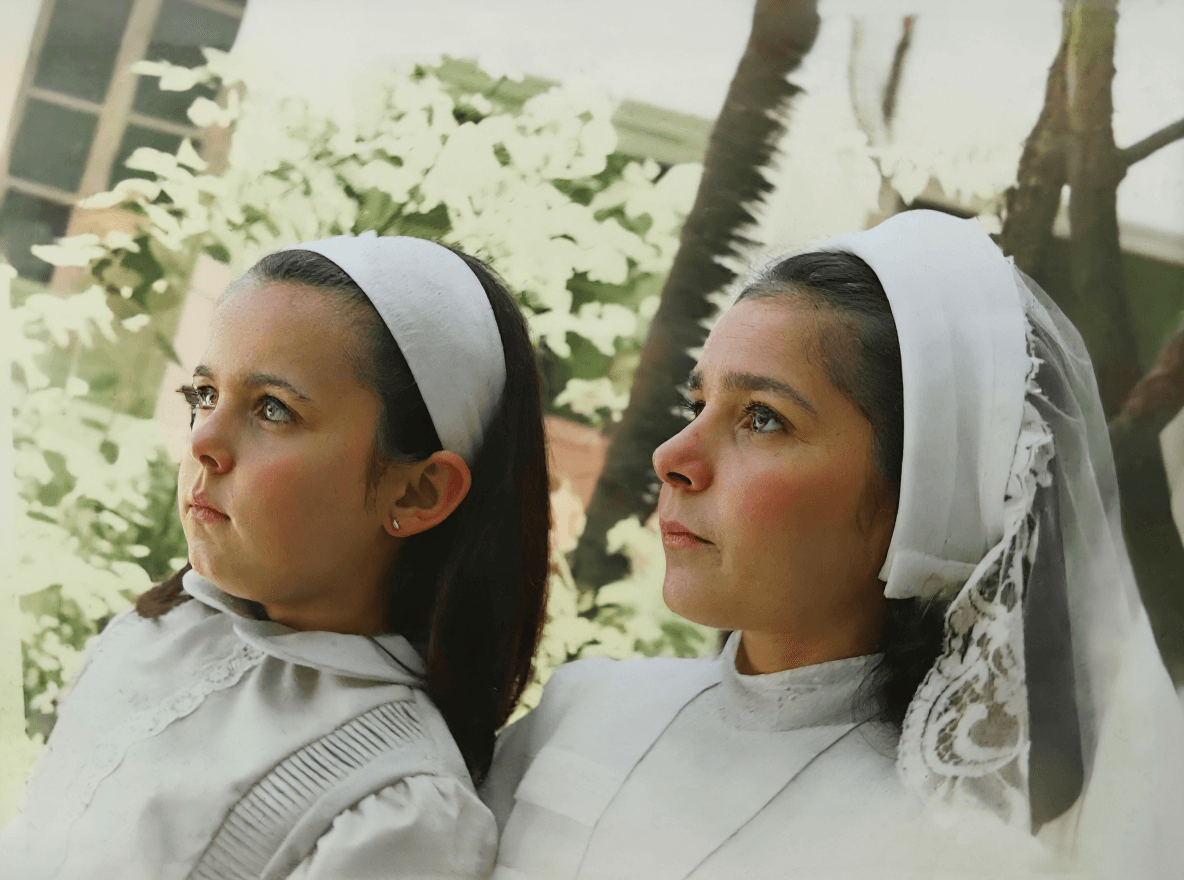
After: Colors restored, scratches removed, details sharpened
This family portrait from the 1970s was restored in under 30 seconds using PixRestorer.
AI vs Manual Photoshop Restoration
Here's the practical tradeoff between a manual Photoshop workflow and an AI-first no-Photoshop workflow:
| Aspect | Professional Editor | PixRestorer (AI) |
|---|---|---|
| Time | Hours to days | Under 1 minute |
| Starting price | $50+ per photo | $5 for 10 credits |
| Skill needed | High if you do it yourself | Low — fully automated |
| Best use case | Pixel-level control for difficult photos | Fast restoration for family archives and everyday scans |
For most everyday old photos, AI is the better first step because it gets you to a usable result quickly. Manual Photoshop work still has a place when the photo is severely damaged or when you need absolute control over specific faces, uniforms, text, or background details.
Frequently Asked Questions
Can I restore old photos for free?
Yes. PixRestorer gives new users 2 free credits, which means you can restore 2 photos at no cost. After that, credit packs start at$5 for 10 credits. No subscription required, and credits never expire.
Can PixRestorer fix very damaged photos?
It depends on the condition. Photos with significant damage — large missing sections, heavy mold, extreme blur — are harder to restore automatically. The AI does its best, but results vary. If a photo is extremely degraded, you may see some artifacts or imperfect reconstructions in the output.
Can I colorize black and white photos?
Yes. PixRestorer's AI can add color to monochrome and sepia photos automatically. The colorization is based on context from the image itself, so results look natural rather than arbitrary.
What formats are supported?
JPG, PNG, and WEBP are fully supported. For the best results, upload uncompressed or high-quality compressed files. Heavily compressed photos (like small social media exports) may not restore as well due to loss of fine detail.
Is my photo kept private?
Your uploaded photos are processed and then automatically deleted from our servers. We don't store, share, or use them for any other purpose. See our Privacy Policy for the full details.
Can I restore multiple photos at once?
Yes! You can upload up to 10 photos in a batch. Photos are queued and processed sequentially — you'll see each photo's status update in real time.
How long does restoration take?
Most photos finish within 30 seconds. Larger files or photos with complex damage may take up to 1–2 minutes.
Ready to restore old photos without Photoshop?
Start with the restore tool, then check pricing only if you need more than the free credits.